
- 1
Choose Signed in at the top right, then My events.
My events: how many resources you have and how many are open, and Your events with a row per event.
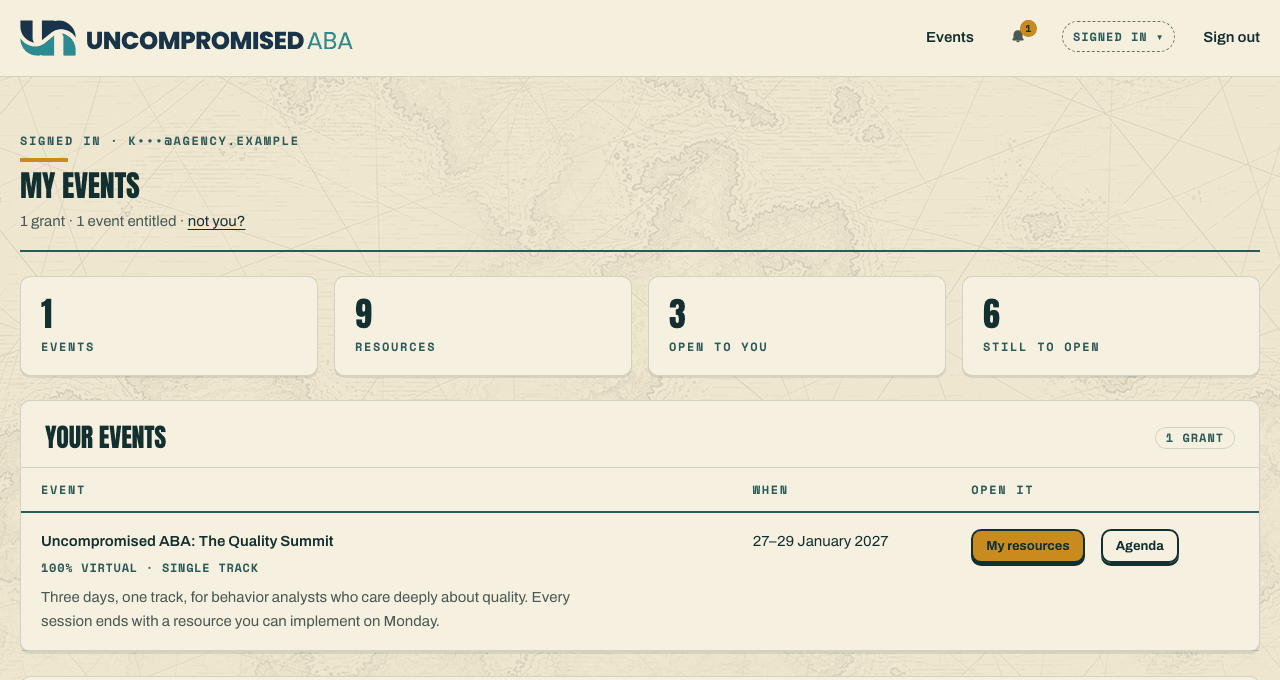
Everything you are registered for. The tiles count what is open now and what is still to come. - 2
Scroll to Straight to the job aid for a list of every resource and its state. Choose View on one marked Open.
that resource's page.
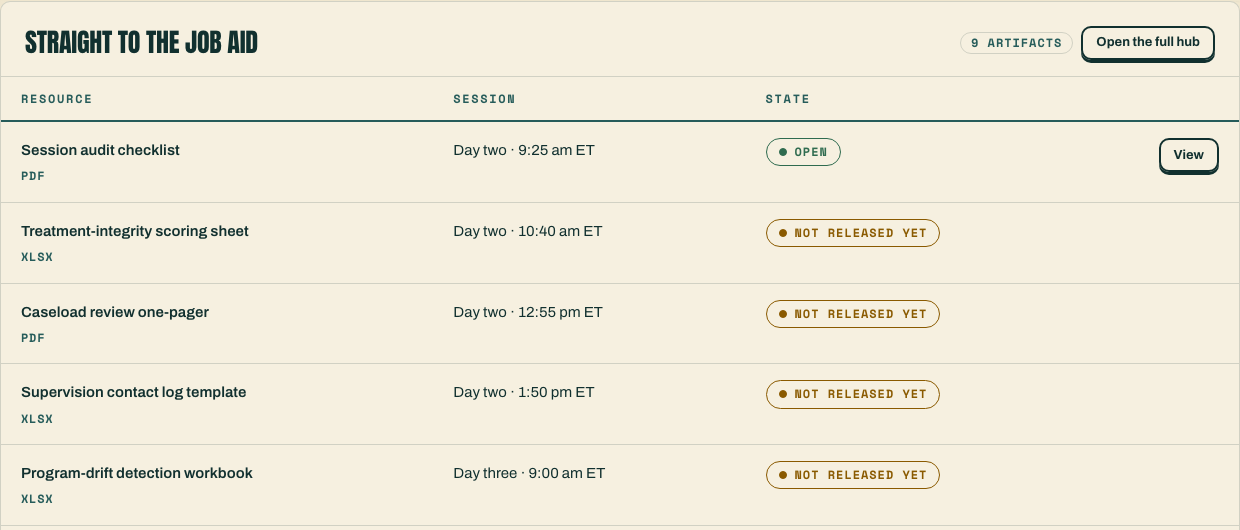
Open or Not released yet. Only open resources have a View button. - 3
To see every resource as a card, choose My resources in Your events, then Open the full hub.
the event's Resources page, one card per resource.
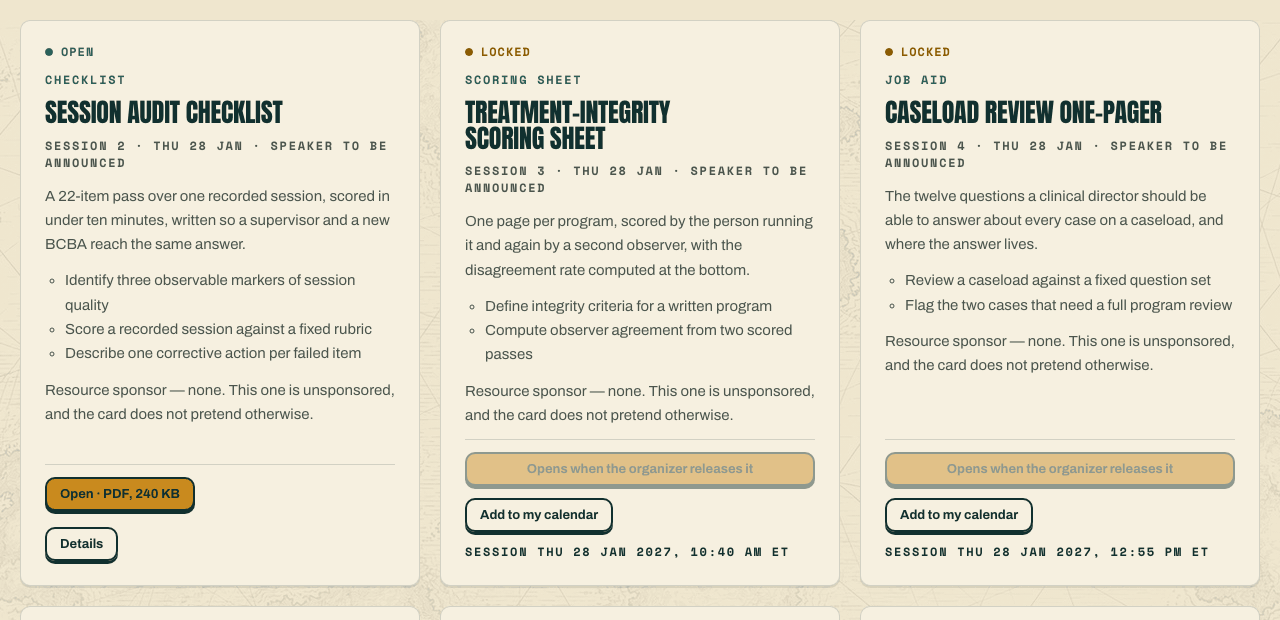
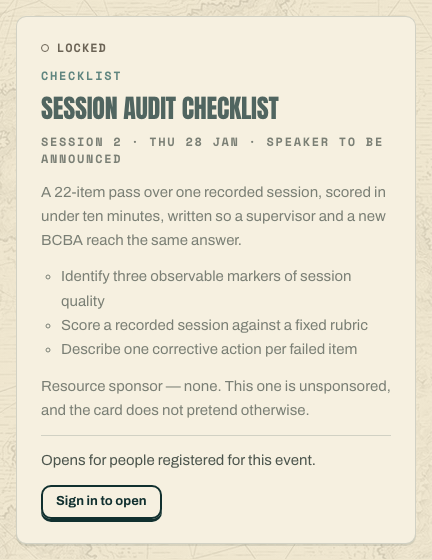
Open and Locked side by side. A locked card tells you when its session is; Add to my calendar saves the date. - 4
On an open card, choose the open button. It names what you get: Open · PDF, 240 KB opens the file in a new tab, Download · … saves it, Watch the video plays it on the page. Details shows the resource on its own page first.
the file, the video, or the resource page with the same button.
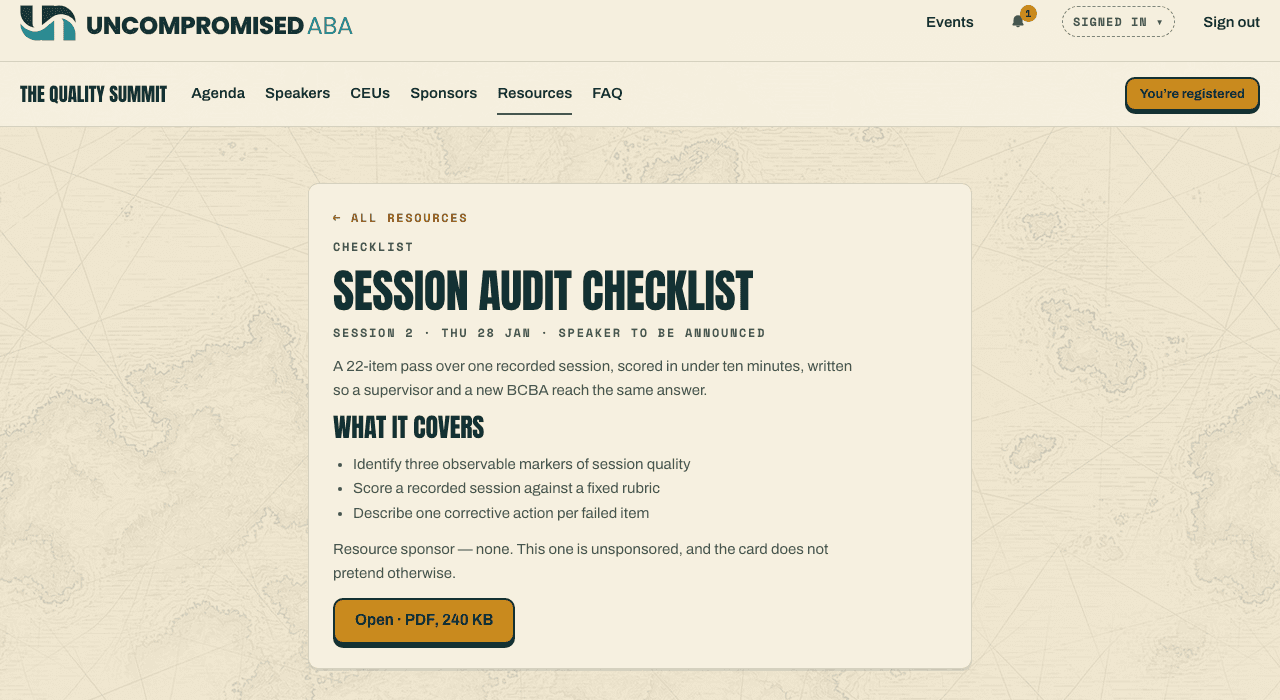
A resource page. Use ← All resources to go back to the cards.
Fill in a form resource
- 5
On a form card, choose Open form.
the form, with a privacy notice: what you type stays in your browser.
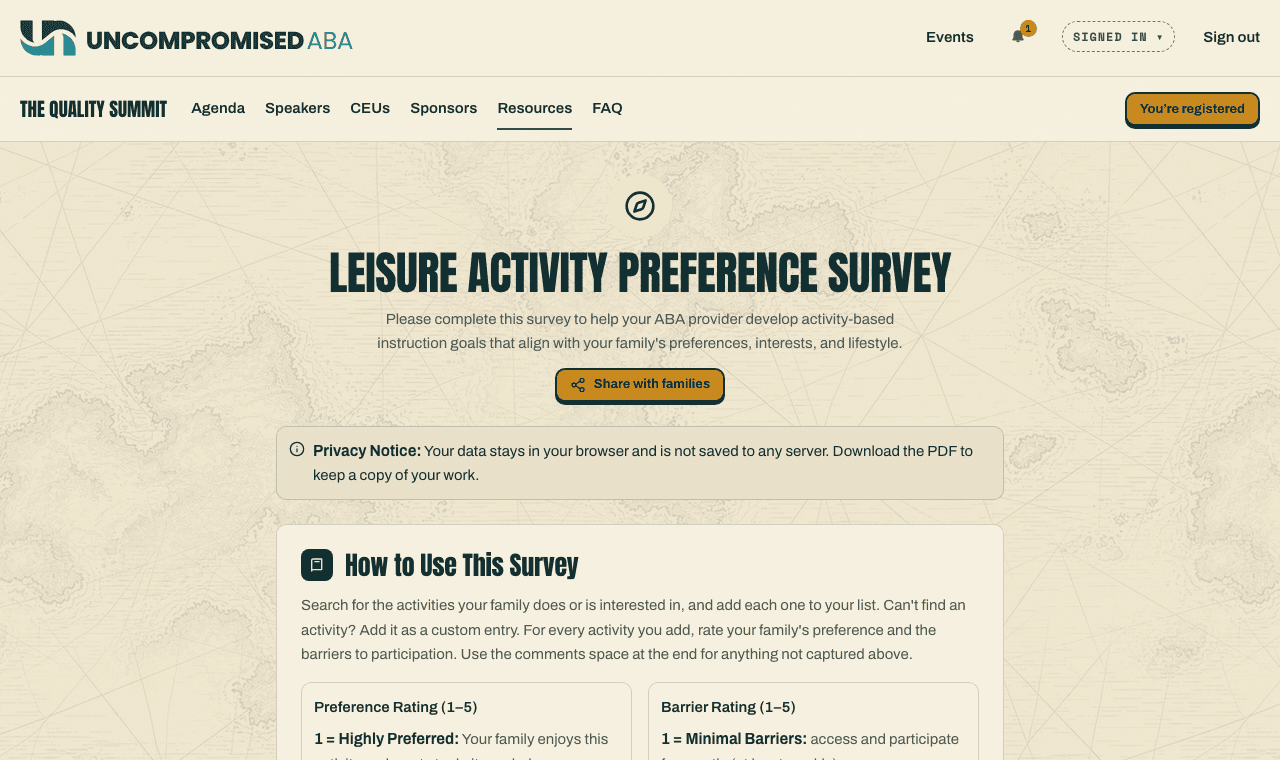
Nothing is saved on the site. Download the PDF before you close the page, or your answers are gone. - 6
In Find Your Activities, type a word into the search box, then choose Add next to an activity.
the activity under Your Activities, with ratings to fill in.
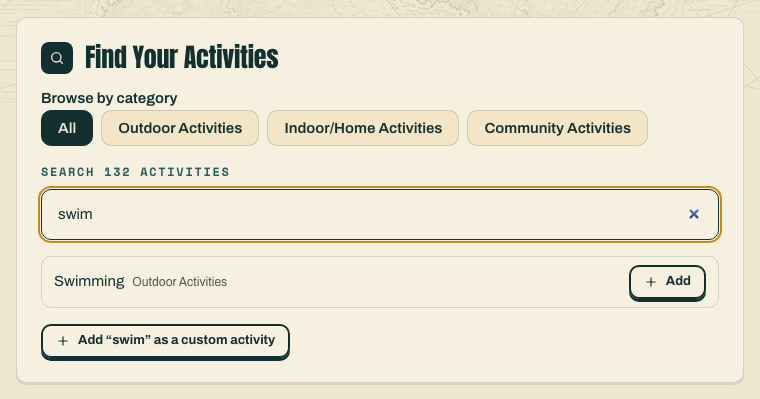
Not on the list? Add what you typed as a custom activity instead. - 7
Choose a rating from 1 to 5 for each question on the activity.
your choices marked.
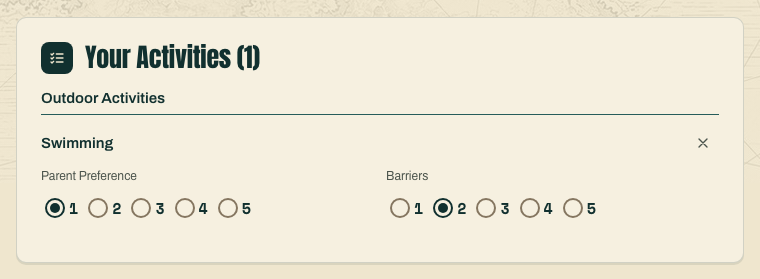
The rating scales are explained at the top of the form. The cross removes an activity. - 8
At the end of the form, choose Download PDF.
a PDF of your answers in your downloads, ready to share with your provider.

Keep your copy. Reset Form clears every answer, so download first.
If something looks wrong
| What you see | What it means | What to do |
|---|---|---|
| "Opens for people registered for this event." and Sign in to open | You are not signed in. | Choose Sign in to open and sign in with the address you registered with. |
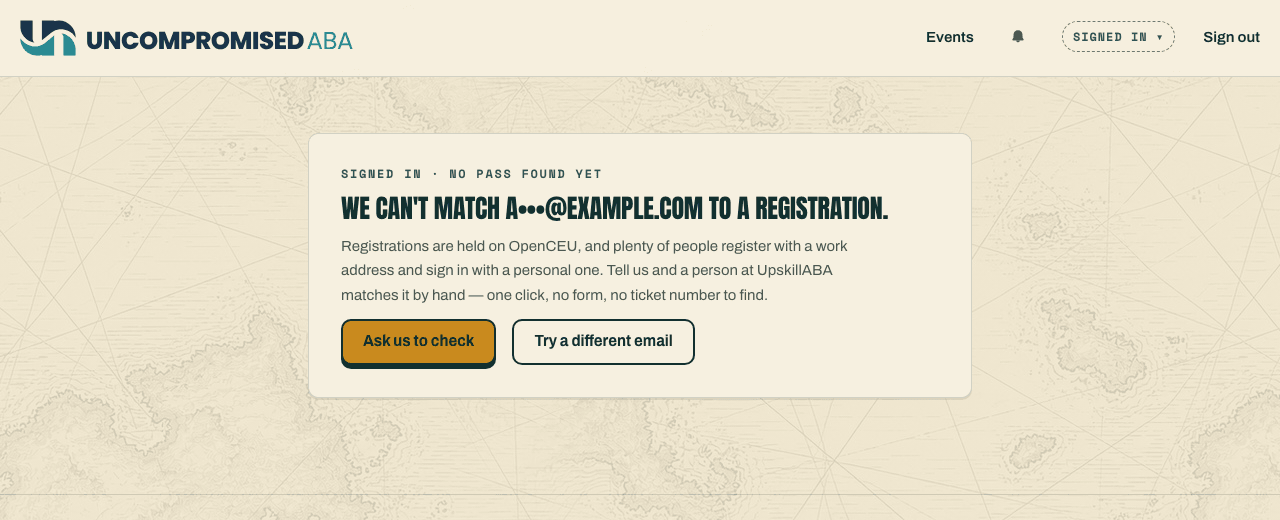
| We can't match your address to a registration on My events | You signed in with a different address from your registration, or your registration has not been imported yet. | Choose Sign out and sign in with the address you registered with on OpenCEU. If it still shows after a day, email support@uncompromisedaba.com. |
| Locked and "Opens when the organizer releases it" | The organizer has not released this resource yet. | Choose Add to my calendar and come back around the session time. |
| "Opens for people registered for this event." while signed in | Your registration does not cover this event. | Check the event on your OpenCEU confirmation, or email support@uncompromisedaba.com. |
| Your form answers disappeared | Forms are kept only in the open page, never on the site. | Fill it in again, and choose Download PDF before you leave the page. |
Still stuck?
Email us and tell us the address you sign in with and what you were trying to do.