
- 1
Go to uncompromisedaba.com and choose Sign in at the top right.
the Sign in page, with one box: Email you registered with.
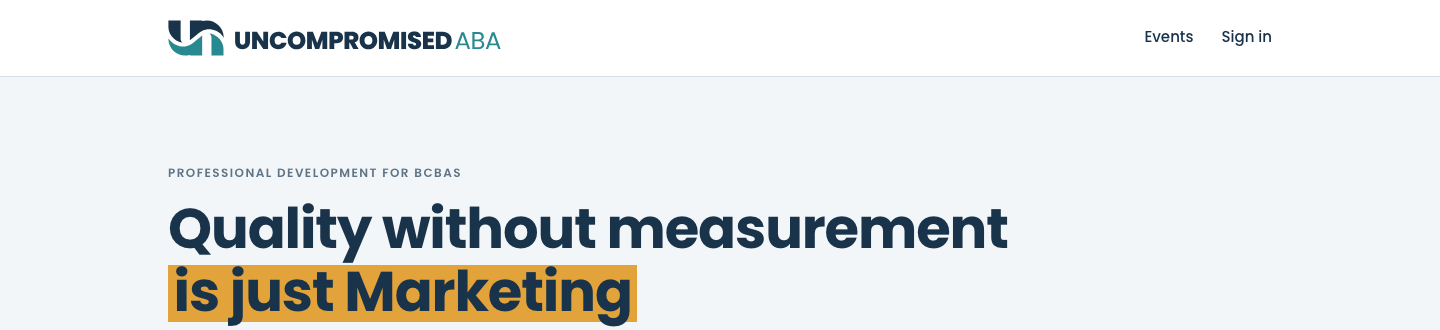
Start here. Sign in is at the top right of every public page. 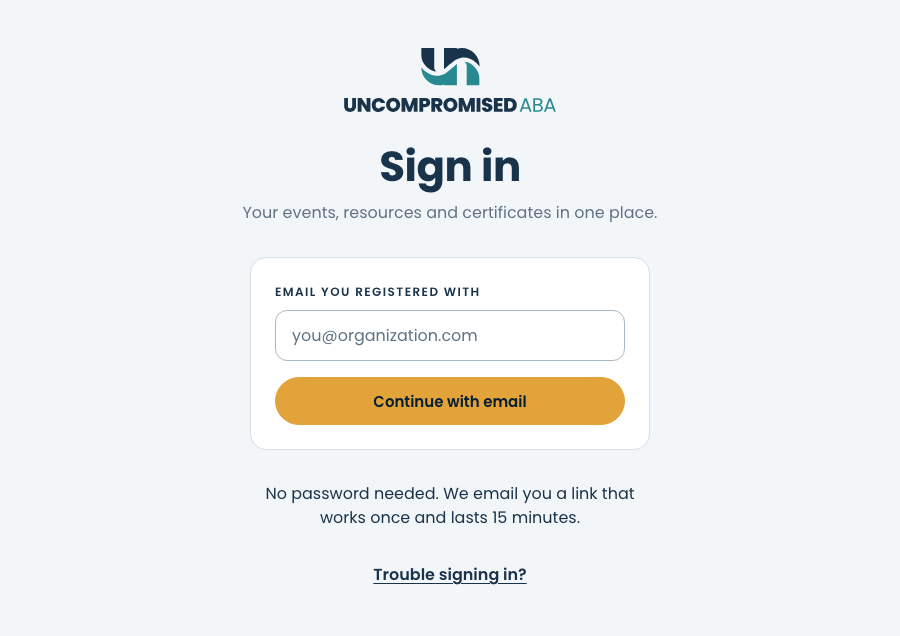
One box. The only thing we ask for is your email address. - 2
Type the email address you registered with, then choose Continue with email.
Check your email, with the line "If j•••@example.com can sign in, a link is on its way." Your address is shown partly hidden on purpose.
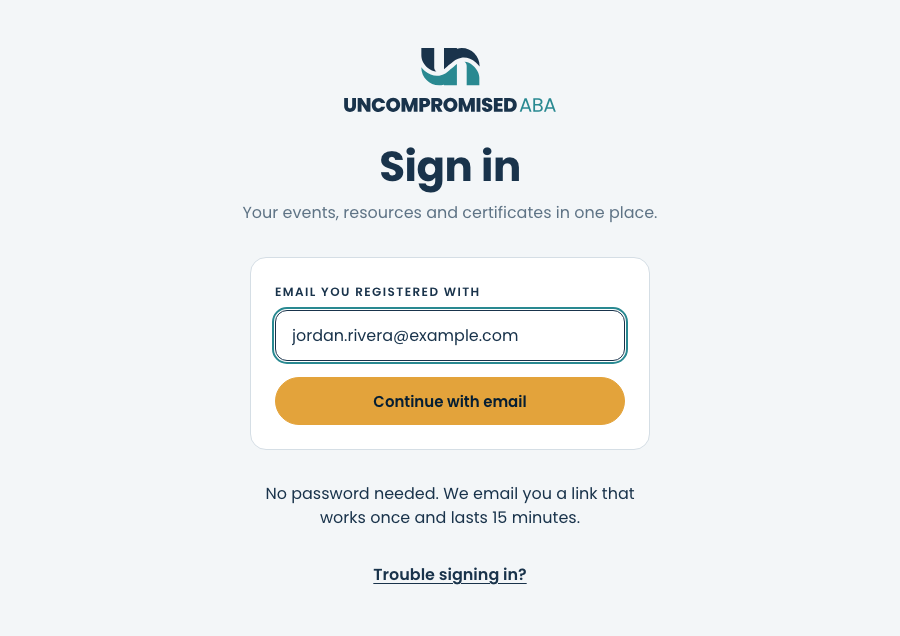
Type the address, then continue. It is the same box whether this is your first visit or your fiftieth. 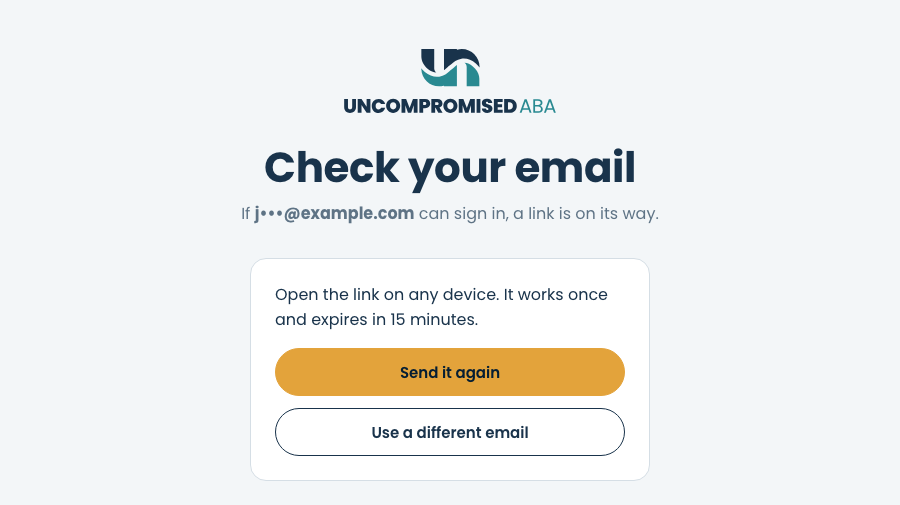
The link is on its way. The address is masked so nobody looking over your shoulder sees it in full. Spotted a typo? Choose Use a different email. - 3
Open your inbox and find the email from Uncompromised ABA. The first time, its subject is Create your Uncompromised ABA account. After that, it is Sign in to Uncompromised ABA.
one of those two emails. The first one takes you to Part A, the second to Part B.
Part A — Your first time: create your account
- A4
In the Create your Uncompromised ABA account email, choose Create my account. On the page that opens, choose Create my account again.
What should we call you?, with boxes for your first and last name.
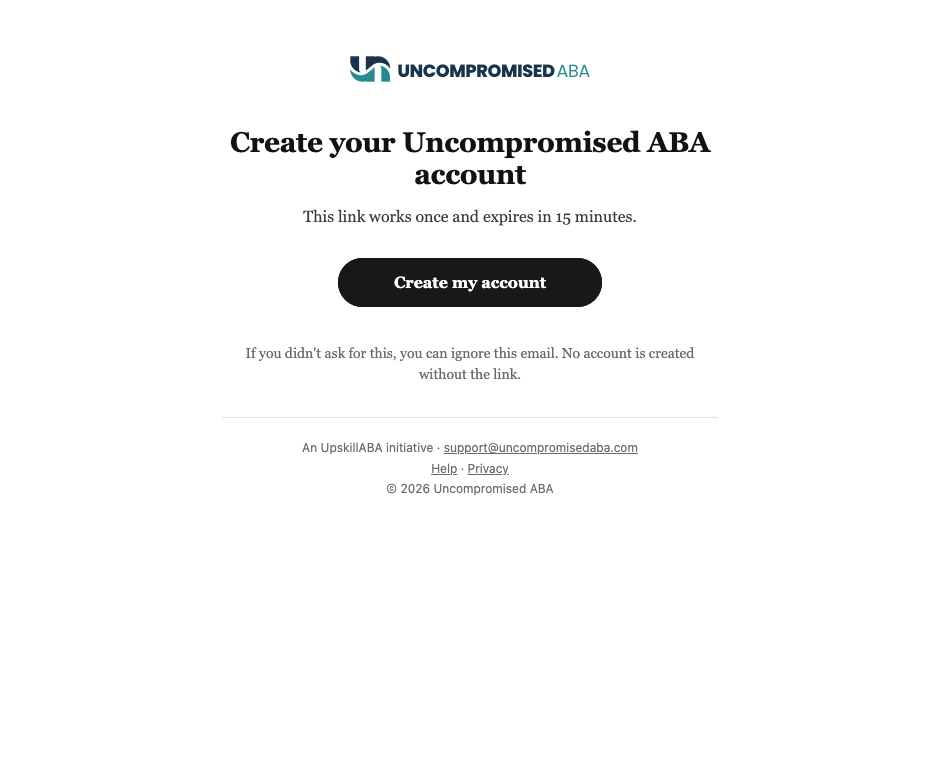
The first-time email. It only arrives when no account uses your address yet. 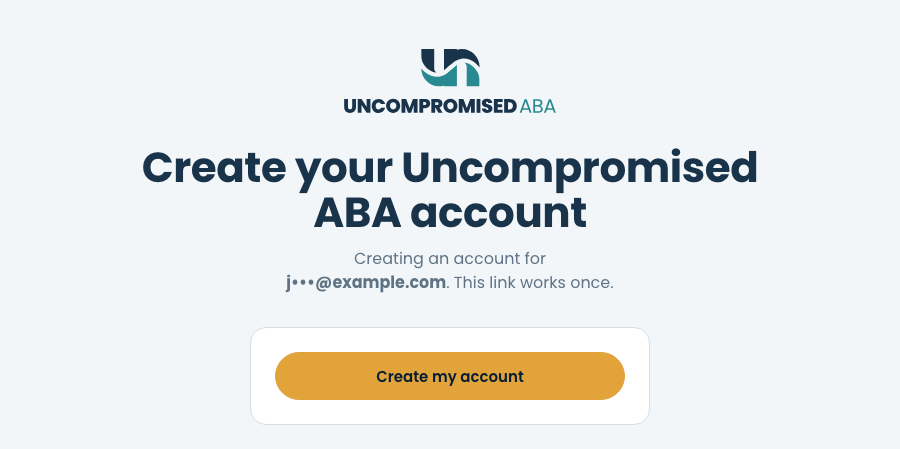
Confirm on the page. Your account is created when you choose the button here, not when the link opens.
- A5
Type your first and last name, then choose Save. If you would rather not, choose Skip for now.
the home page, signed in.
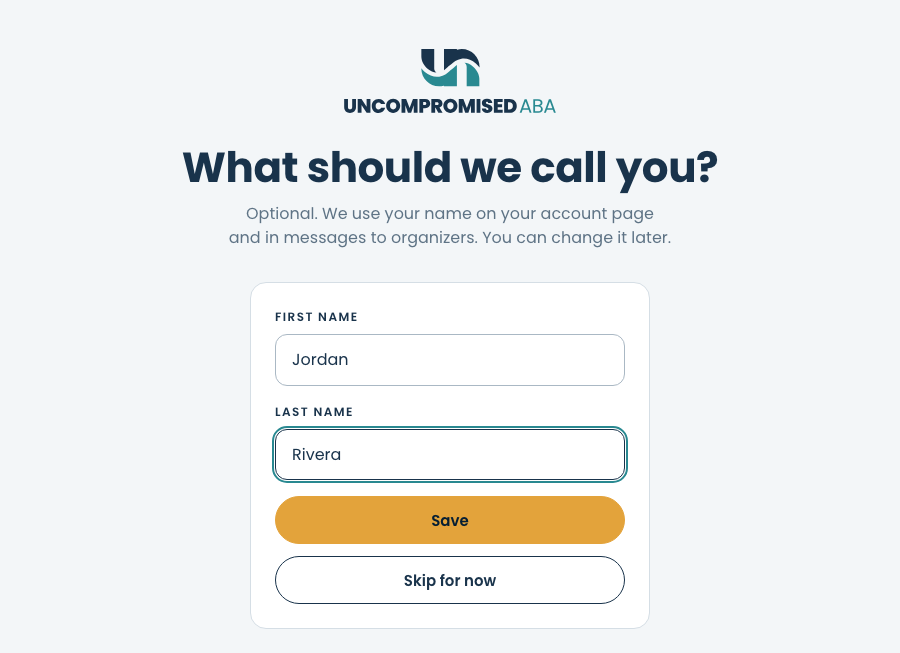
Optional, and asked only once. You can change your name later on your account page. - A6
You are in. Choose Signed in at the top right to open your menu.
My events, My account and Help. My events lists the events you registered for on OpenCEU.
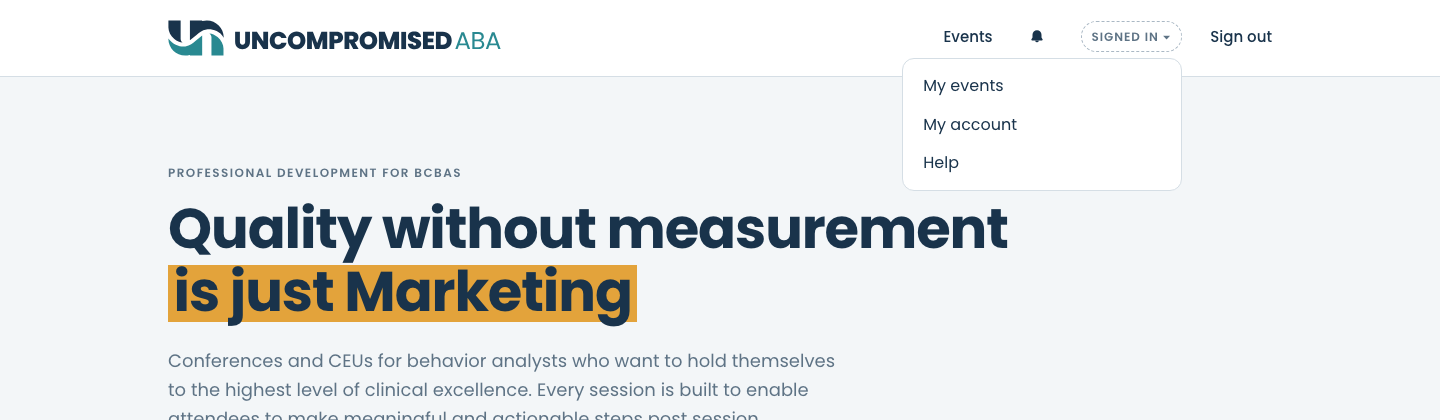
Signed in. Sign in has become Signed in, and its menu leads to your events and your account.
Part B — Every time after: sign in
- B4
In the Sign in to Uncompromised ABA email, choose Sign in. On the page that opens, choose Sign in again.
the home page, signed in.
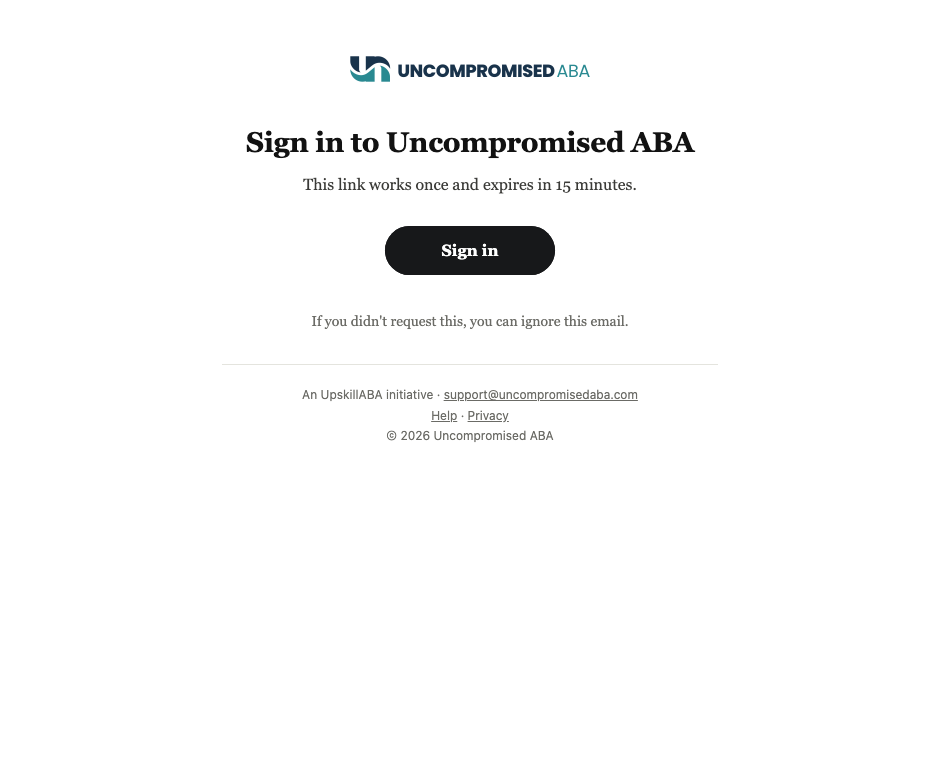
The sign-in email. Didn't ask for it? Ignore it: nothing happens unless the link is used. 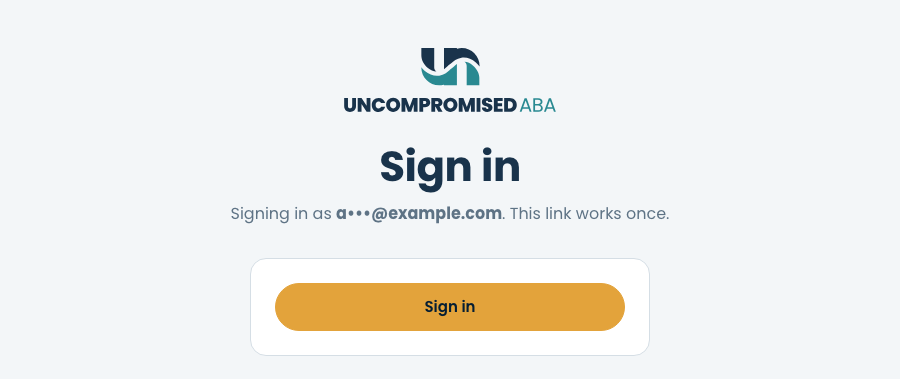
Check the address, then sign in. If the masked address is not yours, close the page. - B5
You are in.
Signed in and Sign out at the top right of the page.
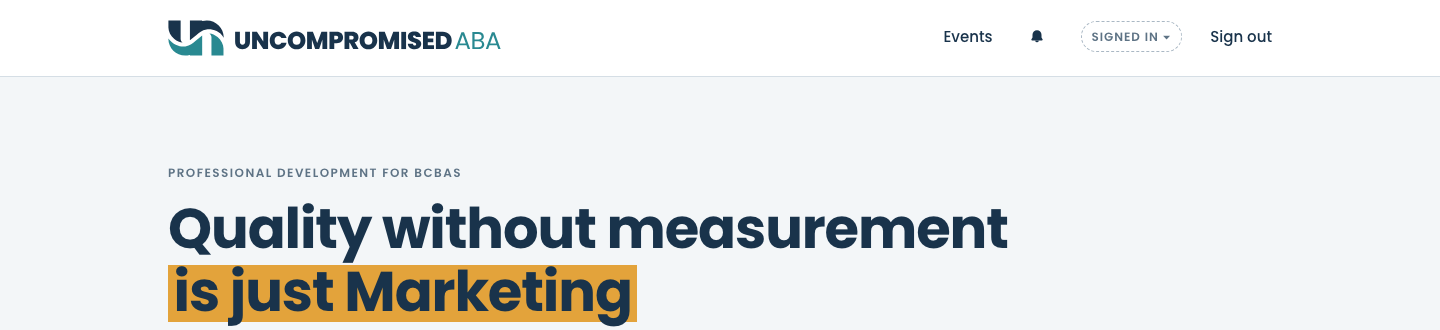
Done. You stay signed in on this device until you choose Sign out.
If something looks wrong
| What you see | What it means | What to do |
|---|---|---|
| This link expired | Links last 15 minutes. | Choose Send a new link and open the new email within 15 minutes. |
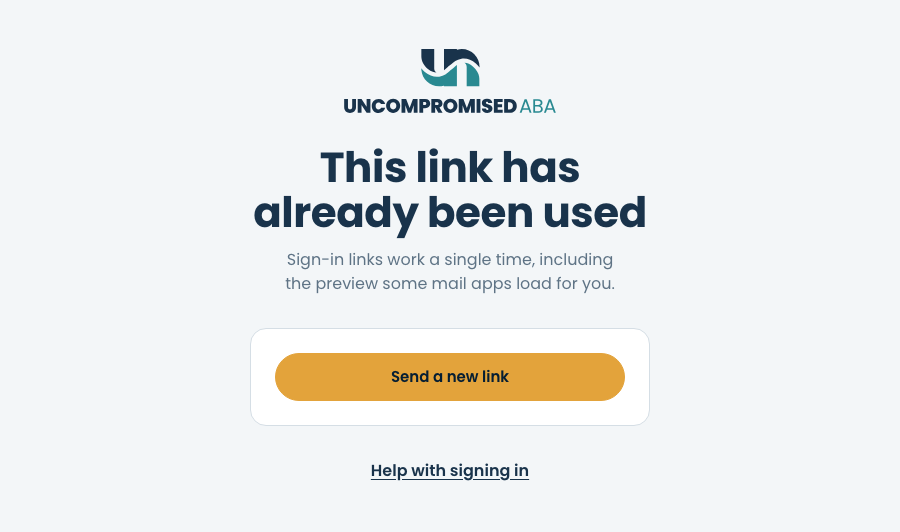
| This link has already been used | Each link works once. It was already used, on this device or another one. | Choose Send a new link. If you are already signed in on this device, just go to the site. |
| A newer link was sent | You asked for more than one link. Only the newest one works. | Open the most recent email from Uncompromised ABA, or choose Send a new link. |
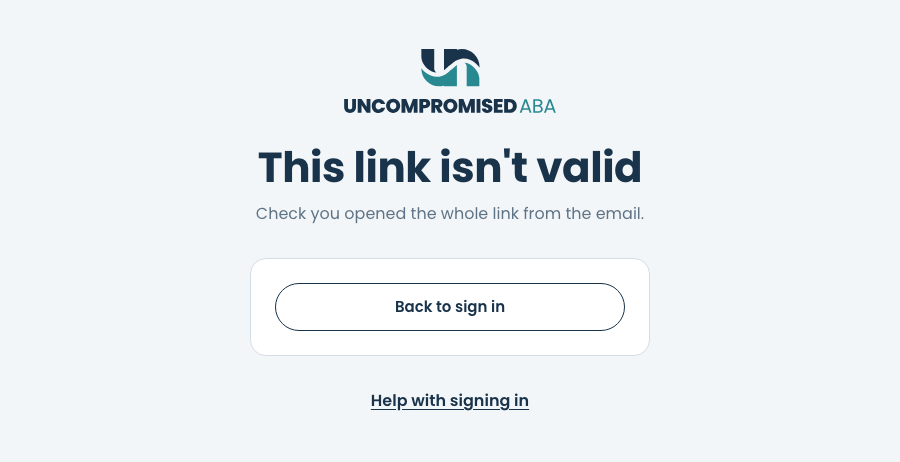
| This link isn't valid | The link was cut short or changed, often by copying only part of it. | Choose Back to sign in and ask for a new link. Choose the button in the email instead of copying the address. |
| No email after a few minutes | Mail can take a minute or two, or land in spam or junk. | Check spam and junk for mail from no-reply@uncompromisedaba.com. Then choose Send it again on the Check your email screen. |
| We can't match your address to a registration under My events | You signed in with a different address from the one you registered with on OpenCEU. | Choose Sign out, then sign in again with the address you registered with. Still stuck? Email support@uncompromisedaba.com. |
| Too many requests | A lot of sign-in requests came from your connection in a short time. | Wait a few minutes, then try again. Links you already have still work. |
Still stuck?
Email us and tell us the address you sign in with and what you were trying to do.